Guide
What Find A Market does, how to get the most out of it, and what each plan adds, for shoppers, vendors and organizers. For step-by-step help with the features that take a few steps, see the In-Depth Guide.
Show the guide for
Quick start
- Sign up, or try it without an account first. The login page has a "Continue as a guest" link if you just want to see real results before creating anything.
- Search a location on Discover. Type a place ("Cincinnati, OH"), or add a keyword in front of it ("halloween market cleveland oh", or an exact event name like "summerfair cincinnati oh") to narrow the results.
- Save the events you care about. Tap Save on any result to add it to My Events, where you can track status and add notes.
- Turn on a reminder. From a saved event, set a reminder anchored to the application deadline (or the event date, if there's no deadline) - it'll show up in the Reminders section at the top of My Events once it's due.
- After you go, rate it. Mark the event attended on My Events and submit a quick vendor rating - see Ratings below for exactly how. It takes under a minute and helps every other vendor deciding whether that market is worth their time.
- Found something we missed, or something wrong? Report it from Settings (missing event) or directly from an event's detail view (incorrect event) - both feed into real review, not a black hole.
What Find A Market does
Find A Market helps makers and small-business vendors find craft fairs, markets, and festivals worth applying to, and keep track of the ones they care about. Search results come from two places at once: a growing dataset of events already found (by automated collection, prior searches, and events or corrections reported by users and checked by us) and, when needed, a live AI-powered search that looks for new events an area doesn't have on file yet.
Dataset search vs. AI-assisted search
Every search starts with the existing dataset first, so you get results instantly. Whether a live AI-powered search also runs - and the new results it finds get added to the dataset permanently, so the next person searching that same area benefits too - depends on your tier.
On Free, AI only kicks in when an area genuinely has little or nothing on file yet - if the dataset already has a reasonable amount of coverage, your search stays dataset-only. Free's AI-assist also has its own small daily allotment, separate from and tighter than the overall daily search count above it - once that allotment is used up for the day, every later search runs dataset-only for the rest of the day even if it lands on an equally sparse area.
On Vendor Plus, a live AI search runs on essentially every new search regardless of how well-covered the area already is, until that day's AI-assisted allotment is used up - after that, searches fall back to dataset-only for the rest of the day. Results found via AI carry a small "AI found" badge.
The two tiers count their daily limit differently, and it is the main practical difference between them. On Free, the daily number is a cap on every search - once it is used up, no further searches run at all until it resets. On Vendor Plus, the daily number is the AI-assisted budget only: once it is spent, searching carries on unlimited for the rest of the day, just dataset-only.
On Vendor Plus, one of your daily AI-assisted searches also automatically searches deeper than the rest - normally the search that would use up that day's allotment, so you get an extra-thorough look right before switching to dataset-only for the remainder of the day. If you'd rather choose which search gets that boost, check Super Search on any search that day (Discover, below the radius and date range row) to spend the same boost there instead, going even deeper than the automatic one. Only one search a day gets the boost either way - picking Super Search early just means the automatic one won't also trigger later.
Walkthrough: AI search and Super Search, step by step.
Plans: Free, Vendor Plus, Market Pass and Organizer Plus
Both tiers get the same core product - full search, saved events, reminders, and the entire ratings system (vendor and visitor ratings, rater ranks, and public profiles). None of that sits behind a paywall. What Vendor Plus actually buys is more room across the board (search radius, date range, saved events, and results per search all go up), plus a handful of tools Free doesn't have at all.
The daily search limit works differently between the two tiers, rather than just being a bigger or smaller version of the same number - see Dataset search vs. AI-assisted search above for exactly how. Short version: Free gets more total searches per day, each one counting against a hard daily stop; Vendor Plus gets fewer AI-assisted searches per day, then unlimited dataset searching underneath.
Vendor Plus also adds AI-assisted geocoding that catches a typo'd or ambiguous location, preferred and excluded event-type filters, a juried-only filter, saved searches, calendar view with .ics export, and a running expense/sales summary for vendors tracking their own numbers (see My Events below).
A couple of things are the same on both tiers rather than being Vendor Plus perks: the weekly new-event email (once you've saved a default location) and the refer-a-friend program - see Settings, section by section below for both.
New accounts start with 7 days of Vendor Plus free, no payment details required (older accounts can start their free week from Settings). New accounts can also earn up to 7 more days: each market you rate in your first 14 days adds 24 hours of Vendor Plus. For exact numbers and current pricing, see the Pricing page.
There are two more plans. Market Pass is for people who shop markets rather than sell at them (see For shoppers), and Organizer Plus is for people who run them (see For organizers). Vendor Plus includes Market Pass, and Organizer Plus includes both. An account has one plan at a time, whether it's set up as a vendor or a visitor. Any plan can also be given as a gift.
Founding program. In some areas we invite working vendors and regular market shoppers to use Find A Market for a month, with full Vendor Plus or Market Pass for that month and more free months for finishing it. Organizers have their own offer: the first 50 verified organizers get 6 months of Organizer Plus. The details, and how to apply, are on the Founding program page.
Getting the best results from a search
Discover's search box reads location and keyword together, in either order, and it's worth knowing what it actually recognizes so a search doesn't come back thinner than it should.
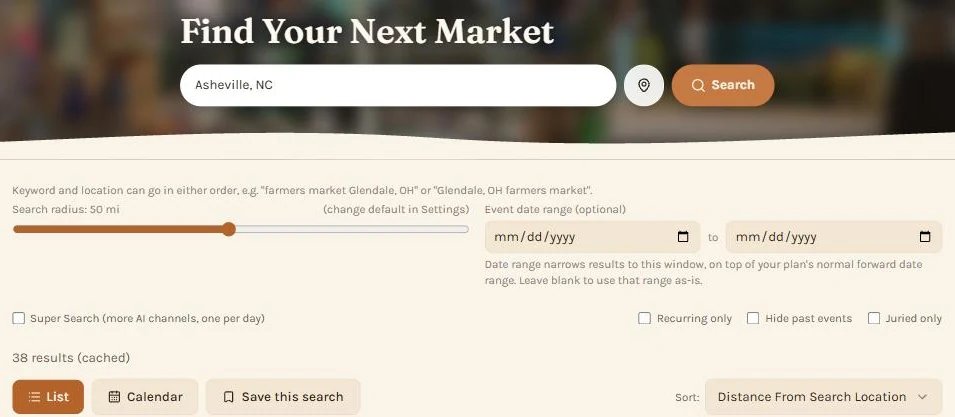
- Start with just a place if you want everything. A bare city, state, or zip ("Cincinnati, OH", "45202") returns every event type in range - the widest possible result set for that location.
- Add a category phrase to narrow by event type, in either word order - "farmers markets Cincinnati OH" and "Cincinnati OH farmers markets" both work. Find A Market recognizes nine category phrases: farmers markets, flea markets, festivals, artisan markets, fine arts & crafts (or "arts and crafts"), craft fairs, pop-up events, holiday markets, and food markets. When one matches, Discover shows "Detected category: ..." right under the search box so you can confirm it read the phrase correctly before you even hit Search.
- Search a specific event by name if you already know it - typing an exact or close title ("summerfair cincinnati oh") matches against the dataset's own event titles and descriptions, not just location, which is the fastest way to find one specific market's current listing rather than scrolling a whole area's results.
- A genre that isn't one of the nine categories still works - "halloween market cleveland oh" or "car show dayton" aren't recognized category phrases, but Find A Market still separates the keyword from the location using the state/zip in your query as an anchor, then matches the keyword against event titles and descriptions. This works best when your search includes a real state or zip somewhere in it - a bare genre with no location anchor at all ("pottery shows" with nothing else) can't be reliably split and is treated as a location search instead.
Beyond the search box itself, a few more controls shape what comes back:
- Search defaults, in Settings - your default location, default search radius, saved search keywords, and default sort order all live on the Settings page's Search defaults card and shape every search before you even type one - the controls below only override them for the current visit.
- Search radius slider - directly under the search box. Dragging it only changes this one visit; your real saved default lives in Settings. If a search feels thin, widening this first is usually the quickest fix.
- Recurring only - a checkbox in the control bar above your results, free for every tier. Turns on to show only events flagged as happening on a regular schedule (annual fairs, monthly markets) - useful for "what could I return to yearly" planning rather than mixing in one-off events.
- Sort - also in that control bar. Options are Distance from search location, Soonest (event date or deadline), Event date, Application deadline, and Event type. "Soonest" is usually the most useful default when you're actively deciding what to apply to next, since it surfaces whichever date - the event itself or its application deadline - is closer.
- List vs. Calendar view - toggle next to Sort once results exist, for browsing the same results as a calendar grid instead of a list.
- Event date range - two date fields sitting right next to the radius slider, free for every tier. Narrows results to a specific window on top of your plan's normal forward-looking range - handy for planning a specific season, e.g. searching in September for only December-March events. Resets to blank the next time you load Discover - a one-visit adjustment, not a saved preference.
- Hide past events - a checkbox in the control bar that drops events that ended recently. Visitor accounts start with it on and Vendor accounts start with it off (an event that just ended is often your cue to watch for next year's application). Change it any time and it is saved to your account, so it follows you to other devices. While events are hidden, a line above your results says how many and lets you show them again.
- Juried only (Vendor Plus) - a checkbox in the control bar above your results, alongside Recurring only. Shows only events flagged as juried in the data - most reliable for "Fine Arts & Crafts" and similar juried-show categories. Shown greyed out with a "Vendor Plus" badge on Free/guest rather than disappearing.
- Super Search (Vendor Plus) - a standalone checkbox below the radius/date-range row (see Dataset search vs. AI-assisted search above for what it does). Shown greyed out with a "Vendor Plus" badge on Free/guest rather than disappearing.
- Save this search (Vendor Plus) - appears in the control bar once a search has real results. Unlike free tier's automatic recent- search log (no action needed, just the last few), this deliberately keeps a search you choose to hold onto, for up to 3 months, viewable and reopenable later from Settings.
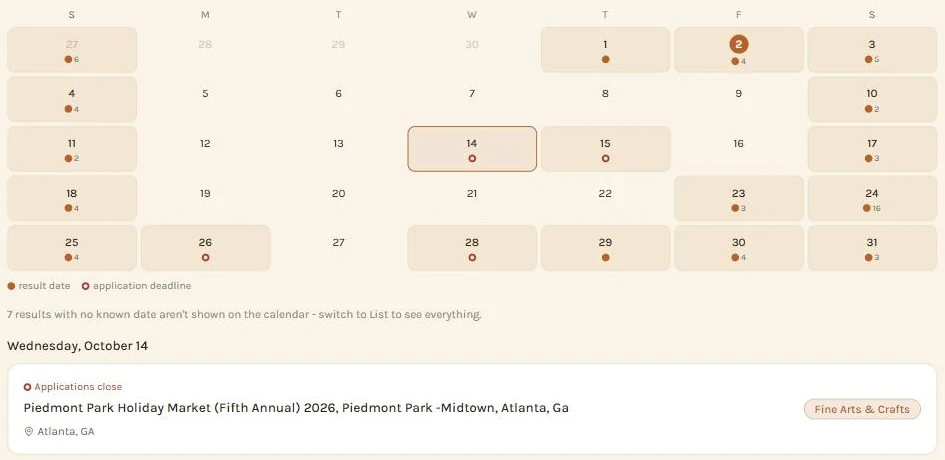
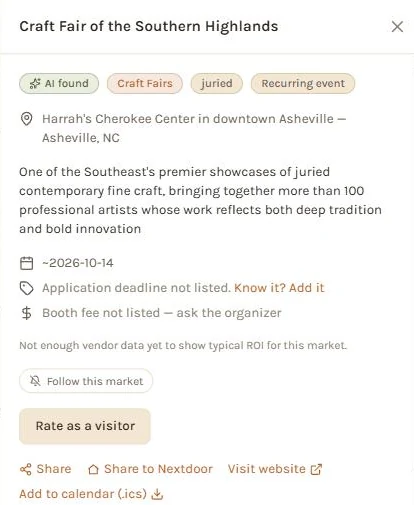
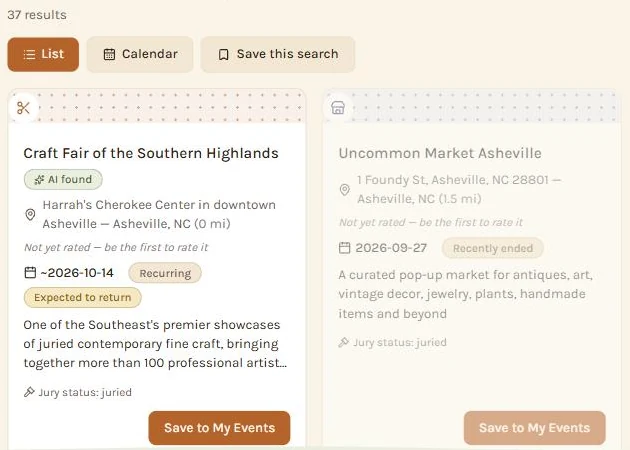
What a card's badges and shading mean: a few small signals show up on cards to tell you more about where an event actually stands, beyond just the date printed on it.
- Weekly, Monthly, Yearly or Recurring - shown on any event that happens on a regular schedule. The badge names how often when we know it, and says Recurring when we don't. Hover or tap the badge for a tooltip explaining how confident that schedule actually is - confirmed straight from the event's own listing text, or an estimate based on its type and history when nothing more specific was ever stated.
- Recently ended - a one-time event stays visible and searchable, dimmed and marked this way, for two weeks after its date passes, rather than disappearing the moment it's over - handy if you're checking how a market you just missed went, or reading a rating someone posted right afterward. It clears from Discover on its own once that two-week window closes. This only ever applies to one-time events - a recurring market with more dates ahead keeps showing normally even after an earlier date in its series has passed, since one past date in an ongoing series isn't the market being over. (Reopening a saved search's earlier results shows this same idea as an Expired badge instead - same signal, different view.)
- Expected to return - shown on a recurring event once its last known date has passed and a new one hasn't been confirmed yet. The date shown alongside it is Find A Market's own estimate based on how often the event usually runs, not a confirmed date from the organizer - worth a quick check of the event's own site or socials before relying on it for real planning.
- Details unconfirmed - an event our AI search found that doesn't have an official website yet. It's shown so you can look into it yourself, with a note that we're still confirming it; the note goes away on its own once we find the organizer's own page.
- Weather forecast - a small icon and temperature range once an event's date is close enough to actually have a forecast (about a week out, from the National Weather Service). Free for every tier, shown on Discover cards, an event's detail view, and My Events cards alike. It only ever appears once a real forecast exists - nothing is shown, guessed, or estimated for an event further out than that.
If a search comes back empty or thin: try it with no keyword at all first, to confirm the location itself has real coverage; widen the radius before assuming there's nothing nearby; and double-check the date range field and Juried-only filter aren't narrowing things you didn't mean to narrow (either is an easy thing to forget you left set from an earlier search).
My Events
Every event you save lands on My Events. Each card tracks a status you set yourself - saved, applied, accepted, declined, or attended - so you can tell at a glance where things stand across everything you're tracking, plus a free-text notes field for anything you want to remember (a contact name, a booth-fee detail, your own reminder to follow up). Cards are collapsed by default and expand with a tap - useful once you've got more than a handful saved.
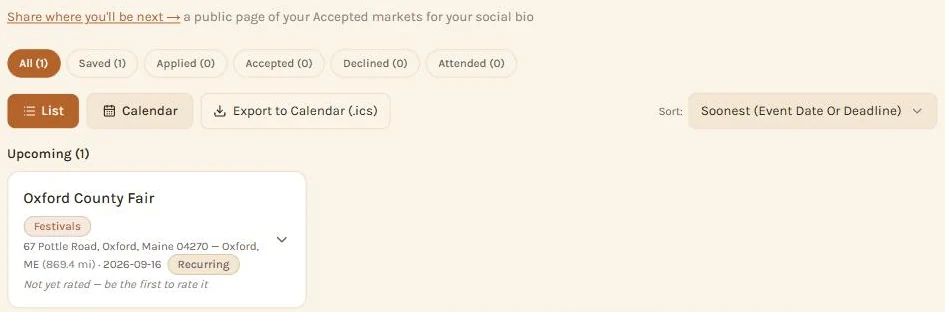
Every card also shows a small embedded map pinpointing exactly where the event is, plus a weather forecast badge once its date is close enough for one to exist (see Getting the best results from a search above for how that badge works). Vendor Plus accounts can additionally switch the whole page to a calendar view instead of the list, plus use a per-event "Add to Calendar" (.ics) export button that drops a saved event straight into your phone or desktop calendar app.
If your account is ever downgraded from Vendor Plus back to Free, saved events that fall outside Free's shorter date range aren't deleted - they're just hidden from the main list until you're back on Vendor Plus or the event's date comes back into range on its own.
Forgot to save something before it happened? The Market Ratings tab has a "Rate a market you already attended" name search - it looks up events by name even after they've fallen out of Discover's forward-looking results, and lets you either rate it as a visitor on the spot or save-and-mark-attended it in one click so its normal vendor rating flow becomes available. See Ratings below for both paths.
Once an event's status is attended, its card also picks up a quick expense log for Vendor accounts - what you paid for the booth, what supplies cost, what you actually sold, and how many hours you worked. Every tier can log those four numbers, and each card then shows your net and your net per hour; see Ratings below for where the running summary of them shows up.
Signed up as a Visitor? My Events works a little differently for you: instead of the vendor statuses you mark events Interested, Going, or Went, you see which vendors will be there, get a day-before reminder, and get a "How was it?" box after you go. The booth-fee, sales and application-deadline tools are for Vendor accounts.
Vendor tools that save you typing
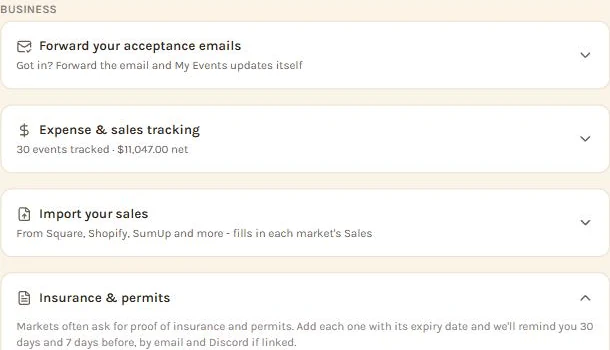
- Forward your acceptance emails. Got in, waitlisted, or declined? Forward the email to your private Find A Market address (on Your Profile, under Business) and My Events updates that market's status for you and emails you what changed. It works with Eventeny, ZAPP, CaFE, Marketspread, EntryThingy and organizers' own emails.
- Import your sales. Upload a CSV from Square, Shopify, SumUp or any spreadsheet with a date and an amount, or connect Square for a read-only import of the last few months. Daily totals are matched to your markets, and you choose whether to replace, add to, or keep what you already logged. This is on Your Profile, under your sales summary, and it's free.
- Insurance & permit reminders. Add each document with its expiry date on Your Profile and you're reminded 30 and 7 days before it lapses (by email, and by Discord if you've linked it).
- Break-even on every event page. Any vendor sees what the booth fee means in sales. Vendor Plus accounts with some logged history also see a personal break-even based on their own supply costs.
- Your public schedule. Turn on "where to find me" on Your Profile and customers can see your upcoming accepted markets at find-a-market.com/schedule/yourname. You can also add your Etsy shop and TikTok or YouTube videos there.
- Applying to an event. Events you apply to are tracked here as Applied, then Accepted or Declined. How applying works is in applying to events.
- Applications closing soon. A closable card at the top of My Events lists saved events you haven't applied to yet whose deadlines are within about six weeks.
Step by step: forwarding acceptance emails, importing your sales and sharing your public schedule.
Reminders
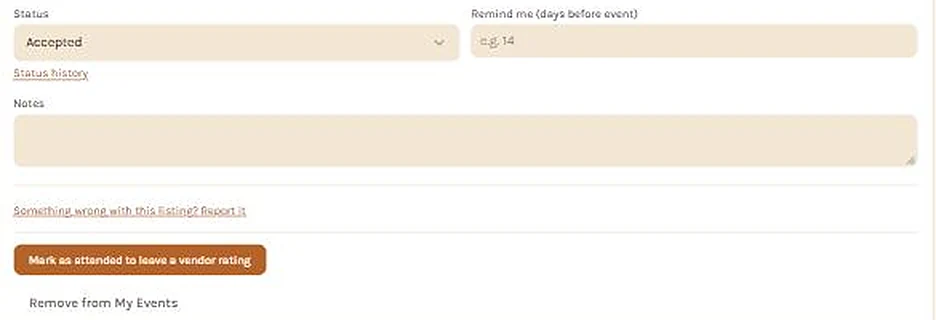
Setting a reminder on a saved event (a simple "days before" number, from that event's card on My Events) is what puts it in the Reminders section at the top of My Events. It opens automatically when something's due and stays collapsed (with a one-line summary) otherwise.
A reminder anchors to the event's application deadline when one exists - that's usually the date that actually matters for a vendor decision - and falls back to the event date itself for listings with no separate deadline (a lot of recurring markets and open-application events work this way). The Reminders section shows you which date it's counting down to either way, so it's never ambiguous which one triggered it, plus a direct link to the event's website.
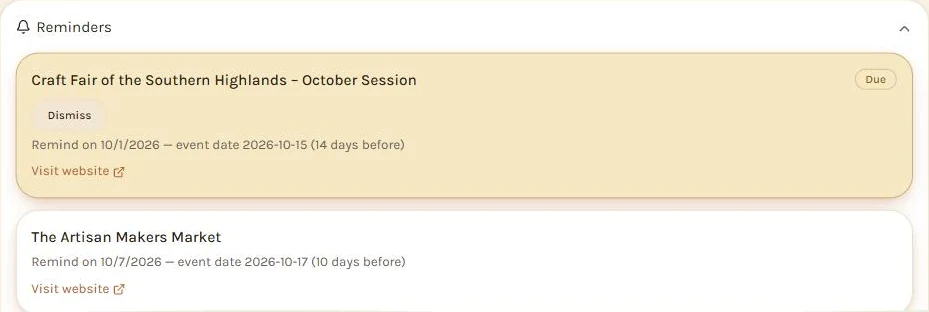
When an event has both dates on file, a Deadline / Event date toggle right on its My Events card lets you switch which one the reminder actually counts down to - the deadline-first default above is just where it starts, not a fixed rule. An event that's already happened won't keep showing up here even if a reminder was left set on it. Walkthrough: choosing which date a reminder counts down to.
When a reminder comes due we also email you (turn that off under Reminder emails in Settings), and message you on Discord if you've linked your account.
Ratings: vendor ratings, visitor ratings & rater ranks
Find A Market has two separate rating classes, always shown and counted apart from each other, never blended into one number: a vendor rating, submitted by a vendor who actually worked the event, answering "should I apply here?"; and an attendee (visitor) rating, submitted by anyone who went as a patron, answering "was this worth going to?" Both are anonymous by default, shown only as your rater rank (e.g. "a Master who attended"). With a public profile, you choose on each vendor rating whether it shows your username or stays anonymous. Both count toward their own separate progression ladder with real, permanent app perks.
The Market Ratings tab
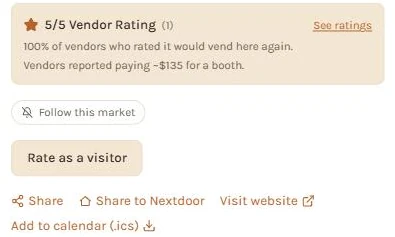
The third tab lets you look up any city, state or ZIP (with a radius slider) and see which markets have real vendor and visitor ratings, whether or not you've saved them. It also holds the name search for markets you already attended, and a rating activity card. If you turn on Location-based rating reminders in Settings, it can also offer to let you rate a market you were just near.
Submitting a vendor rating
- Save the event (or find it with the name search on Market Ratings if you forgot to).
- Once the event's date arrives (the day it happens - you don't need to wait until it's over), its My Events card shows "Mark as attended to leave a vendor rating." Tap it (this is also the real eligibility gate for submitting - you can't leave a rating before this).
- Tap "How did this market go? Submit a vendor rating" to open the form.
- Fill it out: a star rating (1-5, required) is the only mandatory field. Everything else is optional but genuinely helps other vendors - would you vend here again (yes/no), foot traffic (light/moderate/heavy), was the booth fee worth it (yes/no/unsure), and a free-text note. How long that note can be depends on your rater rank - it starts at 300 characters and grows as you rank up, reaching 2000 at the top (see the rank ladder below).
- Submit. It counts immediately toward your rater rank.
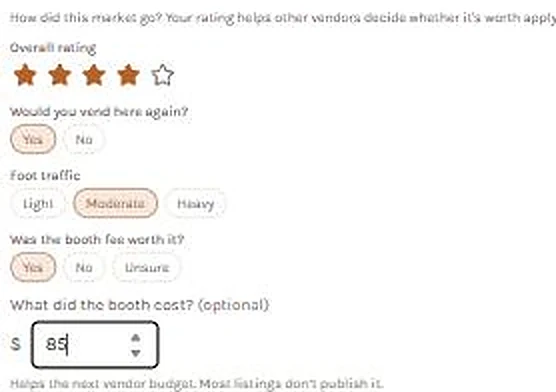
Rating the same recurring market again next year? Submitting a new rating for a market you've already rated asks you to confirm you actually attended this year's occurrence before it updates your rating - your prior rating stays on record either way. You can't rate an occurrence that hasn't happened yet. Master rank replaces that whole re-confirmation step with a one-click "Still accurate - refresh" button instead, if nothing's changed since your last visit.
Step by step: rating a market you already went to and rating the same market next year.
Submitting a visitor (attendee) rating
- Open any event's detail view (tap a result on Discover, or use the name search on Market Ratings for something no longer in Discover's forward-looking results) and find "Rate as a visitor." No saving or marking attended required - this path works on any event, current or past.
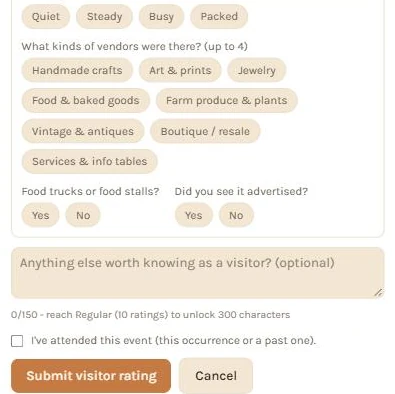
- Give a star rating (required). Optionally tell the story of your visit by tapping when you went, how big the crowd was, what kinds of vendors you saw (up to 4), whether there were food trucks or stalls, and whether you saw it advertised. When at least 3 visitors answer a question, the event shows a one-line summary of what visitors say - never anyone's individual answers.
- Add an optional note. It starts at 150 characters and grows to 300 once you've rated 10 events as a visitor.
- Check "I've attended this event" - required every time, since there's no save-and-wait history to lean on the way the vendor path has.
- Submit. Like the vendor path, rating a recurring event again next year asks you to confirm this year's occurrence specifically.
How rater rank works (vendor ladder)
Every vendor rating you submit counts toward a rank, shown next to your ratings instead of your name. Ranks are permanent once reached and each unlocks a real, permanent perk:
- Hobbyist (1 vendor rating) - unlocks eligibility toward the Modern look in Settings (see below - reaching Hobbyist OR rating 10 events as a visitor gets you there, whichever comes first).
- Apprentice (3 vendor ratings) - unlocks marking other vendors' ratings "Helpful", and a longer note allowance on your own ratings.
- Journeyman (10 vendor ratings) - unlocks following a market for new-activity alerts, and a longer note allowance again.
- Artisan (25 vendor ratings) - unlocks attaching up to 3 photos to a rating (an inline "add photos" prompt appears right after you submit).
- Master (50 vendor ratings) - unlocks submitting an expanded, pinned review (up to 1500 characters, stays at the top of a market's ratings), the one-click "still accurate" refresh shortcut for recurring re-rates, and 14 bonus days of Vendor Plus access, added when your current Vendor Plus access ends (or right away if you're on Free).
The Eventgoer ladder (visitor ratings)
Casual attendees get their own separate progression track, so a "Master" badge keeps meaning exactly one thing (50 real vendor market experiences) and is never diluted by visitor volume. It takes more visitor ratings to reach the same perks a vendor reaches sooner, but a seasoned eventgoer earns the exact same real perks:
- Visitor (1 rating) - counts toward Modern-look eligibility alongside the vendor path; no badge shown yet.
- Regular (10 ratings) - your ratings start showing a real tier label publicly, you can mark others' ratings "Helpful", and your visitor comments grow from 150 to 300 characters.
- Enthusiast (50 ratings) - unlocks following a market for new-activity alerts, and visitor comments grow to 500 characters.
- Superfan (125 ratings) - the same Artisan perk: photo attachments, and visitor comments reach their maximum of 750 characters.
Master-level perks (pinned reviews, the refresh shortcut, and the Vendor Plus bonus-days reward) stay vendor-only at every threshold on this ladder - those are specifically about vendor-side trust and credibility. A brand-new account also needs a little history (a few days old, or any prior real activity in the app) before visitor ratings start banking credit toward this ladder - it never blocks submitting the rating itself, only delays a fresh account's progress counting.
Using the perks once you've earned them
- Helpful votes - a thumbs-up button under any vendor rating, once you're Apprentice (3 vendor ratings) or Regular (10 visitor ratings) or higher. When someone marks one of your ratings helpful, a dot appears on the Market Ratings tab, and the details show at the top of Market Ratings. Verified organizers get the same dot when someone rates one of their events.
- Follow a market - a "Follow this market" button on an event's detail view; toggles to "Following this market" and flags new activity for it on your Settings "Followed markets" card.
- Photo attachments - offered automatically right after you submit a rating, once eligible; up to 3 photos per rating.
- Pinned/expanded review (Master only) - a checkbox inside the vendor rating form itself, unlocking the 2000-character note field and pinning that review to the top of the market's rating list.
Your own rank, progress toward the next one on both ladders, and exactly what each perk does are always visible in full on your Your Profile (also linked from Settings) - nothing about how this works is hidden from you there.
Tracking your expenses and sales (vendor)
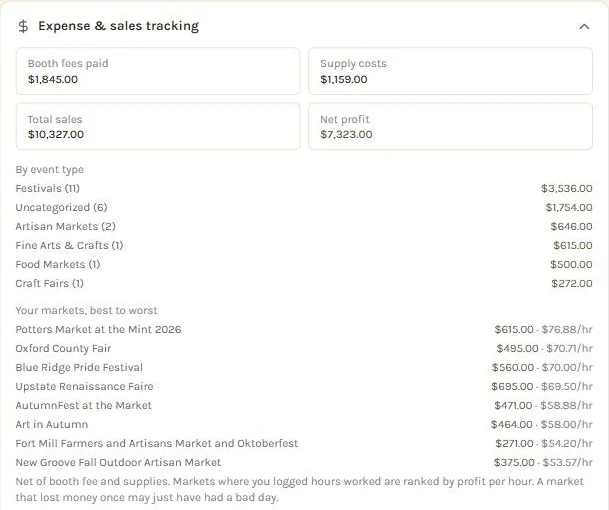
Once you mark an event attended on My Events, its card gets a quick expense log - what you paid for the booth, what supplies cost, what you actually sold, and the hours you worked. That per-event logging is open to every tier, right there on the event card. Upgrading to Vendor Plus additionally unlocks a running summary right here on Your Profile: total spent, total earned, and net profit across every market you've tracked, broken out by event type. It also ranks your markets best to worst, by net profit and by profit per hour when you log your hours, so you can see which shows are really worth doing.
Syncing your numbers to a Google Sheet (Business Sheet)
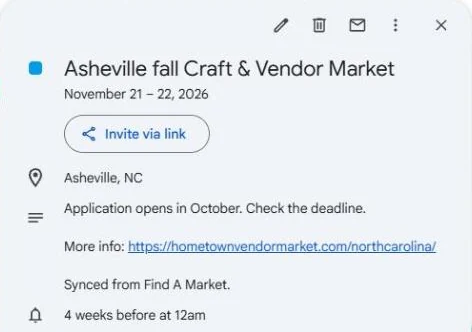
Google Calendar sync and the Business Sheet are part of Vendor Plus (your free first week included) and Organizer Plus. Connecting Google in Settings turns both on. The Business Sheet card on your Profile sits right under Expense & sales tracking, and until Google is connected it points you to Settings. There's nothing separate to connect: Sheets export rides on the same Google Calendar connection. The connection itself puts each market you mark applied, accepted or attended on your Google Calendar, and takes it off again if you remove it or are declined. Full walkthroughs: connecting Google Calendar and the Business Sheet, start to finish.
Sync my sheet (or Create my Business Sheet the first time) builds a real spreadsheet in your own Google Drive with a Dashboard, Profit & Loss, an Event ROI Log, a Market Scorecard, Committed Markets, an Expense & Supply Tracker, a Deadlines tab and an export for accounting software - all pulled fresh from Find A Market every time it syncs, including automatically a few times a day, not just when you click the button yourself. Two tabs work the other way: a Mileage Log and a Sales Tax Tracker are seeded once and then left alone for you to fill in by hand - your mileage deduction and sales tax collected both then feed back into your summary here in the app the next time it syncs.
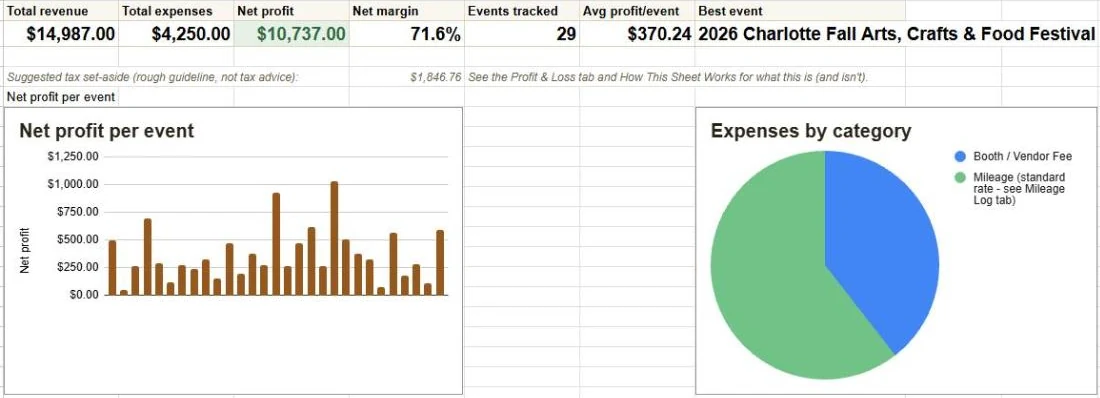
The Event ROI Log tab is two-way too. Correct the booth fee, supply costs, or sales total you already logged for a market directly in the sheet, and it updates that event back in Find A Market on the next sync. Add a brand-new row for a market that isn't in Find A Market at all, and clicking Sync my sheet yourself (not the automatic background sync) will create or link that event for you - matched by title and date, and still subject to your tier's saved-events limit.
Create new starts a fresh sheet and archives the old one - useful at the start of a new year or season - while Sync my sheet otherwise just keeps updating the same spreadsheet every time.
The sheet and every figure in it are a record-keeping aid, not tax or accounting advice. Check the numbers against your own records and use an accountant or tax professional for your taxes. See section 4 of the Terms.
Setting up a public profile
By default, your ratings stay fully anonymous - identified only by your rank, never your name. From the Your Profile you can optionally set up a public profile:
- Upload an avatar (optional).
- Add one extra picture (optional): vendors can show a flyer or a photo of their booth, shoppers a favorite photo. It's shrunk automatically, checked like any photo, and appears on your public page.
- Choose a username (3-20 letters, numbers, underscores, or hyphens).
- Add a short bio (up to 300 characters) and a website link (optional).
- Check "Make my profile public" when you're ready, then Save.
Once public, your vendor ratings link to find-a-market.com/u/yourname instead of just showing your rank, and anyone can view your bio and rating history there. You still choose on each vendor rating: the rating form asks whether to post it as @yourname or anonymously, and an anonymous one shows only your rank and is left off your public profile. Handy when you'll be dealing with that organizer again. The profile is entirely opt-in and off by default, and there is no following, messaging, or commenting between users on profile pages - it's a credibility page, not a social feature.
Settings, section by section
Settings is organized top to bottom into the following cards, and every card is visible to every account. A handful of controls inside them (marked below) are still Vendor Plus-only - shown greyed out with a "Vendor Plus" badge rather than left off the page until you upgrade.
- Subscription - your current tier, trial status if you have one, billing details if you're a paying subscriber (with a Manage or cancel subscription button that opens Paddle's secure page), and any bonus Vendor Plus days you've earned from your rater rank.
- Look & Appearance - one card, two independent choices. Look is Classic (Find A Market's original look) versus Modern (softer, more rounded corners and card shadow - same features either way); Modern is earned, not free by default, reach Hobbyist rank (1 vendor rating) or rate 10 events as a visitor, whichever comes first, and until then the Modern button shows locked with your live progress. Appearance is the dark/light theme toggle, unconditionally free for everyone regardless of tier or rank - nothing to earn there, purely a comfort/accessibility choice.
- Search defaults - your default location, default search radius, saved search keywords, and default Discover sort order. This is what pre-fills Discover every time you visit, so you're not retyping the same city and radius each session.
- Happening near you today - a card on Discover listing markets and events happening today within 10 miles of where you are. On by default; turn it off here. It uses your location only while the app is open, and its X hides it until you next open the app.
- Weekly new event email - one email a week listing new events matching your active saved searches (Vendor Plus) and/or your default location (every tier) - nothing sent if there's nothing new. Requires a default location to be saved first; Vendor Plus accounts can additionally save a second location for a separate weekly email covering that area too.
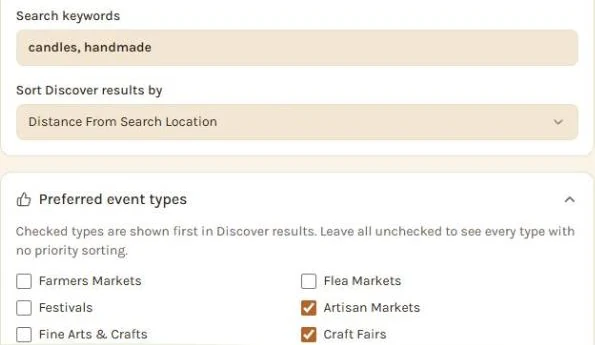
- Preferred event types (Vendor Plus) - checked types get sorted to the top of every Discover result automatically, without hiding anything else. Leave everything unchecked for no priority sorting.
- Excluded event types (Vendor Plus) - checked types are removed from Discover results completely, not just sorted lower. Genuinely different from Preferred above - use this for categories you never want to see at all.
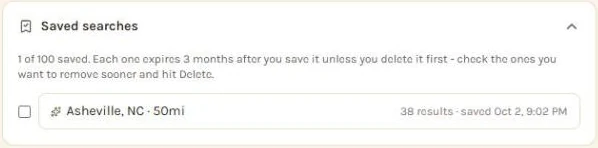
- Saved Searches (Vendor Plus) and Search History - Free tier gets an automatic, no-action-needed log of recent searches. Vendor Plus tier gets both: the automatic history (with a per-entry "Save" button to promote a past search into a real saved one without re-running it) plus deliberate Saved Searches - up to 100 at a time, each expiring 3 months after you save it unless you delete it sooner. Reopening a saved search takes you straight back to Discover with that exact search re-run.

Saved searches (Vendor Plus) keep their result count and reopen on Discover in one tap. - Reminder emails - on by default; turn off the emails we send for deadlines, paperwork expiry and after-market nudges. You'll still see reminders inside the app.
- Tips & check-in emails - on by default. Every optional email we send also ends with an unsubscribe link that turns all optional email off in one click; account, billing and security emails always go out.
- Location-based rating reminders - off by default. When on, Market Ratings can offer to let you rate a market you were just near.
- Your rater rank - a collapsed card summarizing your current rank, vendor ratings to your next one, and a list of every event you've submitted a vendor rating for (title, date, your rating). Expand it, or follow its link to your full Profile page for perk details and your public profile settings.
- Followed markets - only appears once you've actually followed at least one market (a Journeyman/Enthusiast+ perk). Lists what you're following, with a dot marking anything with new activity since you last checked.
- Refer a friend - your personal invite link, plus a running tally of friends referred and Vendor Plus weeks earned. Available to every tier - referring friends and earning weeks isn't a Vendor Plus perk, even if you're on Free yourself. A reward only credits once a referred friend actually subscribes and pays (not just signs up or starts a trial).
- Account type - switch between Vendor and Visitor any time. Nothing is deleted and your plan doesn't change.
- Market Pass and Gift certificates - the Market Pass tools in one place, and buying or redeeming a gift code (see the FAQ at the bottom of this page).
- Google Calendar - connect, choose a separate "Find A Market" calendar, or disconnect. Vendor Plus and Organizer Plus. Walkthrough: connecting Google Calendar.
- Send us a flyer - see Reporting missing or incorrect events.
- Report a missing event - see Reporting missing or incorrect events below.
- Feedback - for bugs and suggestions about the app itself. Deliberately separate from the missing/incorrect event reports above, which are about the event dataset, not the app.
- Replay the tour - shows the welcome walkthrough again. Delete account sits collapsed at the very bottom.
- Organizer registration - a status line: a link to register if you haven't, a note that your registration is awaiting review if you've applied, or a link to your organizer dashboard once you're verified. Editing your business profile and managing your listings both moved to that dashboard - see For organizers below.
Discord
We run a Discord server for Find A Market. It is entirely optional and nothing in the app depends on it. There is a daily post of newly found events, and once you link your account in Settings (the Discord card) you can get your event reminders as a Discord message too, and your role in the server will match your account. Vendor Plus members and verified organizers also get private channels. In the server, type /markets with a city or ZIP to see upcoming markets nearby. Linking never lets us see your messages, and you can turn Discord messages off or unlink any time in the same card.
For shoppers: going to markets
You don't have to sell anything to use Find A Market. If you go to markets to shop, these work on any event page.
Free for everyone
- I'm going. Tap it on an event page and we'll email a reminder the day before. If the organizer marks the market delayed, moved or cancelled, you get an email about that too.
- Who's selling. Vendors who share a public schedule and are booked at the market are listed on its page, with booth numbers when the organizer has them.
- Know before you go. The organizer's own notes on parking, pets, restrooms, payment and rain plans, plus their live status and updates on market day.
- Booth map. When the organizer has made one, it shows on the event page. Tap a booth to see who is in it.
- Recurring markets. A market that repeats shows as one listing, with its other dates and places listed on the event page. The page also says when its details were last checked against the event's own website.
- Share it. The Share button on an event page opens your phone's share sheet (on a computer it copies the link), and there is a one-tap Share to Nextdoor.
- Market Passport. On a market day, tap I'm here on the event page to collect a stamp. Stamps add up to badges and a yearly recap you can share, all on your Passport. If the market has a check-in sign at its info booth, scan it for a verified stamp.
- Rewards for regulars. Some organizers offer a reward for going to their events, like "visit 5 events, get a free tote." Only verified stamps (from the check-in sign) count toward it, one per event per market day, and they add up across all of that organizer's events. When you reach the count, the event page shows "Reward unlocked" and a 6-character code. Show the code at the info booth: the organizer looks up your stamps on their phone and taps Redeem, and each reward can be claimed once. Rewards you collect are listed on your Passport.
- Market games. When an organizer runs them, they show on the event page on market day. Bingo runs in rounds all day: you get your own random card each round, snap a photo for each square, and call bingo; one caller per round wins a small prize and shows their claim code and photos at the info booth. The booth trail stamps your phone at each booth you scan, with a reward for finishing. People's Choice lets you vote for favorite vendors. Bingo and voting need a verified check-in, so you have to actually be at the market: scan the check-in sign at the info booth, or tap I'm here with your location on. All free, no purchase needed.
- Join a friend's Market crew. A crew is a small private group made by invite link. Joining is free.
With Market Pass
Market Pass is the plan for people who shop markets ($5 a month or $39 a year, and included with Vendor Plus and Organizer Plus). It adds:
- Follow vendors. Follow a maker from their public page or an event's lineup. We email you when they're booked at a market near you, and when they post a sneak peek of what they're bringing.
- Find it here, Plan my market day, Find that vendor again. Search nearby markets for something you want to buy, put several markets for one day in driving order with the forecast, or search for a maker you met by what they sell or their business name and see their next dates (this one only finds vendors who share their schedule here). All three are on the Market Pass page.
- Market day panel. On an event page from a week before through the last day: a shopping list for that market and the booth numbers of vendors you follow.
- Perks and pickup holds. Some vendors offer Market Pass members a perk, and some take "hold it for me" requests from their page. You pay at the booth as usual.
- Start a Market crew. Make a private group for you and your friends with a shared plan of markets and a group chat. See starting a Market crew.
A note on vendors. Following a vendor, finding a vendor again, perks, sneak peeks, pickup holds and booth numbers only work for vendors who have an account on Find A Market and share a public schedule. A vendor who has never signed up can't be followed or found this way, and booth numbers also depend on the organizer providing them. The market itself, with its dates and details, is listed either way.
For vendors: your public page and your shoppers
Your public schedule (see sharing your public schedule) is also how shoppers keep up with you. Once it's on, from Your Profile → Your public schedule you can:
- See how many shoppers follow you. Followers with Market Pass get an email when you mark a market Accepted near them.
- Offer a perk for Market Pass members, like 10% off one item. It shows on your page and on event lineups.
- Post a sneak peek (up to 3 a week) of what you're bringing. It shows on your page and is emailed to followers with Market Pass.
- Turn on Reserve for pickup so Market Pass shoppers can ask you to hold an item for one of your markets. You accept or decline, and they're emailed either way. Payment happens at your booth.
Signed up as a visitor and started selling? Switch your account type in Settings at any time. Your plan doesn't change when you switch.
For vendors: applying to events
Many organizers take applications right on their Find A Market event page. Applying is free on every plan. The step-by-step version is applying to an event.
- Save the event to My Events first. The apply card on the event page asks for this, so every application is tracked in one place. Like any saved market, it counts toward your plan's saved-events limit.
- Start your application. Your business details are filled in from your last application. The organizer decides which fields are required and may add questions of their own.
- Pick your photos, if they ask for any. You keep a small photo library of your own: up to 8 photos of your work and booth. Add them from your phone or computer, tick the ones to send, and they are reused on your next application instead of uploaded again. Each photo is deleted 90 days after you last sent it, and you can remove one any time from Your Profile. Only the photos you tick are ever shown to that organizer. Some organizers ask for a website or social link instead of photos.
- Juried events. The organizer shows their jury fee and a link to their own jury page. You pay them there, then confirm it on the form. Find A Market never takes or checks the jury fee.
- Send it. The event moves to Applied in My Events, then to Accepted or Declined when the organizer decides (some organizers also keep a waitlist). You get an email either way, and you can withdraw from the event page.
- On the day. If the organizer uses the vendor sign, scan it at registration. You are marked arrived, and you see your booth number and any note they left for arriving vendors. It is free for vendors, and needs an accepted booking and a Find A Market account.
For organizers: listing and managing your own events
Running a market, fair, or festival yourself - not just vending at one - has its own path, separate from everything above, starting from Settings → Organizer registration.
- Claim an existing listing, or register with nothing listed yet. If Find A Market already has your event, claim it directly. If it doesn't - a brand-new event, or one just moving over from vending to organizing - register instead and tell us about it; not having an existing listing doesn't exclude you.
- Prove it's really yours. A website whose domain matches your account email is the fastest path. Short of that, Find A Market emails you a short line of text to paste somewhere public you control (your site, an "About" page, a social bio) as a second signal. Either way, an admin makes the final call - nothing here is auto-approved.
- Once verified, manage everything from your own dashboard. See each listing's follower count, vendor and visitor rating averages, and whether Find A Market's periodic accuracy check still confirms its details, plus add further listings of your own. Your business profile - description, logo, website, and social links - is also edited right here now, instead of in Settings. Every listing needs at least an event date or a website link to go live. Vendors can also ask questions on your listing; answers are public and askers are never named. Each Monday you get a short summary (views, saves, followers, ratings, open questions and missing details) by Discord message or email.
- Your organizer page isn't optional once you're verified. Your business name, website, and any listings you've claimed are always shown at your public organizer page - vendors deciding whether to trust an event deserve to see who's running it. You can additionally add a description, logo, and social links; those three are the only part that stays private unless you turn them on, unlike a rater's public profile above, which is entirely opt-in.
Walkthrough: claiming your event as an organizer.
Free tools for every verified organizer, from each listing on your dashboard:
- Take vendor applications on your event page, with your own questions, and accept or decline from an inbox. Accepted vendors get an email and the market lands in their My Events. Walkthrough: taking vendor applications. Running a juried event? Add the jury fee and a link to your own jury page, and vendors confirm they've paid it there (Find A Market never handles the money).
- Keep your vendor list in one place: add vendors by hand or import a spreadsheet you already have (CSV or Excel with a header row), and track booths and booth fees. See importing your vendor list.
- Write "Know before you go" notes for shoppers, and on market day post a live status (on, delayed, moved, cancelled) and short updates. Shoppers who tapped "I'm going" are emailed.
- Print a Market Passport check-in sign for your info booth, set a reward for repeat visits, and run market games: bingo rounds, a booth trail and People's Choice. Scans of the sign also move your map pin to where shoppers actually stand. See the check-in sign, rewards and games.
- See how many shoppers are going, copy last year's listing, and use 2 of the promo designs. Your event page can wear the standard Find A Market look or the design of your printed pieces (some designs are Organizer Plus). See your event page, drafts and scheduling.
- Say whether your event repeats and how often (weekly, monthly, seasonally or yearly) when you add a listing, so vendors know when to expect it back.
Organizer Plus ($29 a month or $249 a year, which includes Vendor Plus and Market Pass) adds the rest of the toolkit: all 10 promo designs with your own photo and headline, your own flyer with our QR strip added, AI-powered flyer upload that reads your flyer and fills in the listing for you, drafts and scheduled posting for your listings, a booth map (see building your booth map), an Organizer Business Sheet in your Google Drive, a best-date finder, other events within 15 miles of your dates, weather history, messages to the vendors following your event, listing insights, a vendor feedback summary, a vendor gap report, photo uploads on your application form, a Google Form connection that turns each response into a waiting application, importing vendor lists from Word, PDF or pasted text, the application waitlist with one-click "offer the spot", a payment link in your acceptance emails, bulk decisions and a spreadsheet download. The first 50 verified organizers who run their events here (at least 4 market dates within 6 months on listings with applications turned on, and at least 3 vendors who applied through their own accounts) get these free for 6 months. Details are on the Pricing page.
Reporting missing or incorrect events
Event information comes from automated sources and can be incomplete or wrong - Find A Market is a discovery tool, not a source of truth, so always confirm real details (deadlines, fees, requirements) directly with the organizer before applying or paying anything.
If you spot an event we're missing, report it from Settings, or send us its flyer: Settings has a Send us a flyer card (signed-in accounts, one flyer a day, or up to 3 for verified organizers). Snap a photo or screenshot; each flyer needs the event name, date, city and state, a street address or named venue, a contact email or phone, and a website, QR code or Facebook page. Add anything the flyer leaves out in the form. We read the flyer for those details and it is never shown to anyone. The picture is deleted as soon as it's been checked, and always within 30 days. We check each flyer against the event's own page. A new event is looked over by a person before it goes up, and details for an event we already list are added once that page confirms them. Organizers who want their own flyer shown on their event page can do that with Organizer Plus. If a flyer prints an organizer's email address, we may send that organizer one note inviting them to claim the listing. It never says who sent the flyer, and it has a one-click opt-out. If you spot one that's wrong, report it from that event's detail view or from its card on My Events - pick the specific issue so it's easy to fix: wrong location/city, wrong or missing date, dead or wrong website link, wrong booth cost/pricing, wrong event type/category, duplicate listing, event cancelled or doesn't exist, missing/wrong venue address or contact info, or anything else the specific list doesn't cover.
Every real listing also has its own public, no-login page you can share directly (a "Share this event" button on its detail view) - useful for sending a specific market to someone who doesn't use Find A Market yet. If you're a verified organizer, edit your own listings directly from your organizer dashboard instead of filing a report - see For organizers above.
Install Find A Market on your phone
Find A Market can be added to your phone's home screen like a regular app - it opens straight to Discover without a browser address bar, gets its own icon, and needs no separate download or app-store account. It's the same site either way, just faster to get to.
On Android (Chrome)
- Open Find A Market in Chrome.
- Tap the three-dot menu in the top right, then Install app (sometimes shown as Add to Home screen). Chrome may also offer this directly from an icon in the address bar.
- Confirm, and the Find A Market icon appears with your other apps.
On iPhone or iPad (Safari)
- Open Find A Market in Safari - this only works from Safari, not Chrome or another browser on iOS.
- Tap the Share icon (the square with an arrow pointing up), then scroll down and tap Add to Home Screen.
- Tap Add in the top right, and the icon appears on your home screen.
Frequently asked questions
Why can't I find Find A Market in the App Store or Google Play?
Because it's a web app, so there's nothing to download. It runs in your phone's browser and works the same on any phone, tablet or computer, and every improvement is live for everyone the moment it's made, with no updates to install. You can still have it on your home screen with its own icon: a few taps and it opens full screen like any other app. The steps are in Install Find A Market on your phone above.
Do I have to pay to use Find A Market?
No. Full search, saved events, reminders, and the entire ratings system are free with no paywall. Vendor Plus buys more room (radius, date range, saved events, results per search) plus a handful of extra tools - see Free vs. Vendor Plus above for the full breakdown.
Can I try Find A Market without creating an account?
Yes - the login page has a "Continue as a guest" link so you can see real results before signing up. It's meant as a quick taste rather than a fully-featured path (no saving, reminders, or ratings until you create an account).
Why didn't my search find an event I know is happening?
Every search checks the existing dataset first; whether a live AI-assisted search also runs depends on your tier and that day's allotment - see Dataset search vs. AI-assisted search above. If it's genuinely missing, report it from Settings rather than assuming it's not out there - see Reporting missing or incorrect events below.
What's the difference between a vendor rating and a visitor rating, and can anyone see them?
A vendor rating is a vendor's "should I apply here?" review after actually working an event; a visitor rating is a visitor's "was this worth going to?" review. Both are anonymous by default, shown only as your rater rank. If you set up a public profile, you pick on each vendor rating whether it shows your username or stays anonymous - see Ratings above for both.
What happens to my saved events if I drop from Vendor Plus back to Free?
Nothing is deleted. Events that fall outside Free's shorter date range are just hidden from the main list until you're back on Vendor Plus or the event's date comes back into range on its own - see My Events above.
How does a reminder decide which date to count down to?
It anchors to the application deadline when one exists, and falls back to the event date itself when there's no separate deadline. A toggle on the event's My Events card lets you switch which one it counts down to - see Reminders above.
I spotted a wrong or missing event - what do I do?
Report a missing event from Settings, or an incorrect one from that event's detail view or its card on My Events, picking the specific issue so it's easy to fix. See Reporting missing or incorrect events above - and always confirm real details with the organizer before applying or paying anything, since Find A Market is a discovery tool, not a source of truth.
I run my own market, fair, or festival - can I list it myself?
Yes, through a separate path from vending: claim your listing or register a new one from Settings → Organizer registration, then verify it's really yours. See For organizers above for the full process.
Where is the Business Sheet?
On Your Profile, in its own Business Sheet card under Expense & sales tracking. It shows for vendor accounts on Vendor Plus (the free first week counts) or Organizer Plus. If you signed up as a visitor, switch your account type in Settings first. If Google isn't connected yet, the card tells you to connect it in Settings. Organizers have their own sheet on the organizer dashboard. The Business Sheet walkthrough covers setup start to finish.
Can I change plans, or cancel?
Yes. An account has one plan at a time, and you can move between Market Pass, Vendor Plus and Organizer Plus from Settings. The change takes effect right away and keeps your billing period. You see the exact amount first and confirm it on the page, so you are never sent anywhere else: moving up charges the difference for the rest of the period to your card on file, and moving down leaves a credit on your next bills. If the card is declined, nothing changes and you aren't billed. You can cancel any time from Settings; you keep what you paid for until the end of the period.
Can I give Find A Market as a gift?
Yes. In Settings, Gift certificates sells Market Pass (3 months $15, a year $39) and Vendor Plus (3 months $45, a year $99) as one-time gifts. We email a code, and they redeem it at find-a-market.com/redeem. Nothing renews. If they already pay for Vendor Plus, their next bill simply moves out.
Can I get a refund on Vendor Plus?
See the Refund Policy page for the exact terms.