In-Depth Guide
Step-by-step help for the features that take a few steps to set up. For the overview of everything Find A Market does, start with the Guide.
Show the guide for
AI search and Super SearchVendor Plus
Every search checks the events already on file first, so results show up right away. On Vendor Plus, a live AI search then looks for events the area doesn't have yet, and anything it finds is added to your results as it arrives.
- Search as usual. While the AI search runs, a line above your results says it's showing what's already on file and searching for new events. New finds carry an AI found badge.
- Pick your one deep search of the day. Before you press Search, tick Super Search under the radius slider. That search uses more AI sources and goes deeper. You get one a day; after that the checkbox shows when it resets.
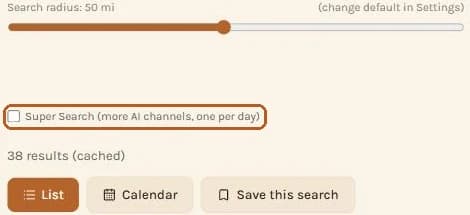
Super Search sits just under the radius slider. Tick it before you search. - Use it where it counts. Super Search pays off most on a big city, a new area, or a narrow keyword ("juried art fair"). An area you search every week already has plenty on file.
- When the day's AI searches are used up, Discover says so and keeps searching everything on file, as many times as you like. The AI allowance resets at midnight your time.
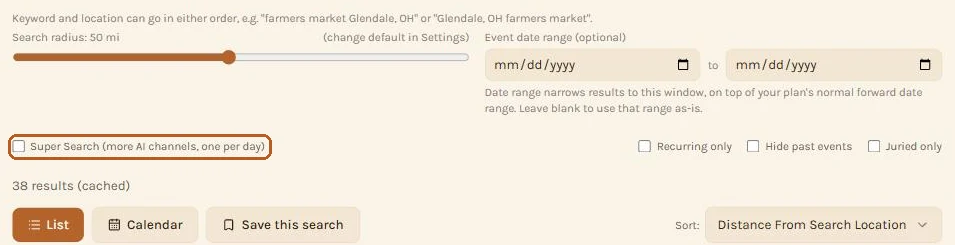
If you don't tick Super Search, Vendor Plus still gives one search a day the deeper treatment automatically, usually the one that uses up your daily allowance.
Connecting Google CalendarVendor Plus
Google Calendar sync is part of Vendor Plus (your free first week included) and Organizer Plus. You will find its card in Settings.
- In Settings, open the Google Calendar card and tap Connect Google Calendar.
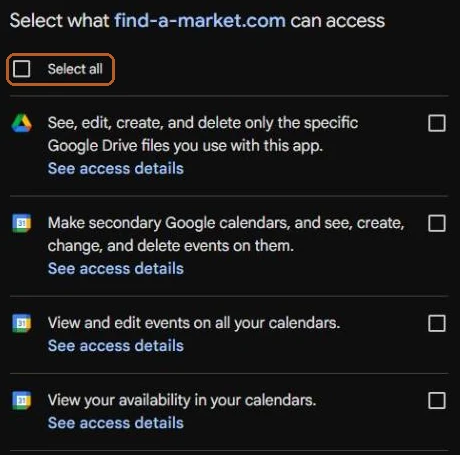
- Choose your Google account. Google then lists four permissions, all unticked. Tick Select all (or all four boxes) and continue. The Settings card explains what each one is for: adding and updating only the events Find A Market puts on your calendar, an optional separate "Find A Market" calendar, checking busy or free times for clashes, and the one spreadsheet the Business Sheet creates. Clash warnings only count time marked Busy, and Google marks all-day events Free by default, so set an all-day booking to Busy if you want it to count.
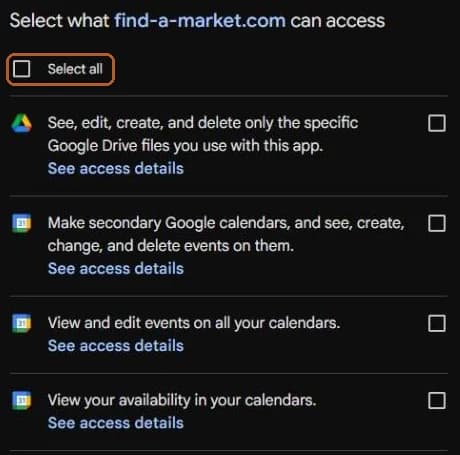
Google's permission screen. Tick Select all so every feature works. - Back in Settings, the card shows which Google account is connected. Markets you already marked applied, accepted or attended are added straight away.
- From then on, a market appears on your calendar when you mark it applied, accepted or attended, not when you merely save it. Remove it from My Events, or get declined, and it comes off your calendar too. A market with an application deadline also gets its own "Apply by" reminder while it's saved.
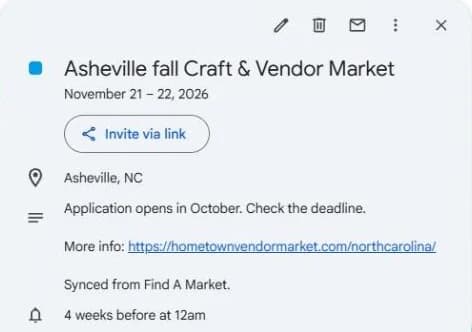
A synced market in Google Calendar, with its dates, location and a reminder.
The Business Sheet, start to finishVendor Plus
A real Google spreadsheet in your own Drive, built from the numbers you log in Find A Market and kept up to date for you. It needs the Google connection above.
It is a record-keeping aid, not tax or accounting advice. Mileage rates, distances, sales tax totals and the tax set-aside are estimates, and the sheet is yours to edit, so check the figures against your own records and use an accountant or tax professional for your taxes (section 4 of the Terms).
1. Create it
On Your Profile, open the Business Sheet card and tap Create my Business Sheet. The sheet opens in a new tab the first time.

2. Know which tabs are yours
Most tabs are rebuilt from Find A Market on every sync, so typing into them is overwritten: Dashboard, Profit & Loss, Market Scorecard, Committed Markets, Expense & Supply Tracker, Upcoming Deadlines, and Export for Accounting Software. Two tabs are yours and are never touched: Mileage Log and Sales Tax Tracker. The Event ROI Log is both: Find A Market fills it, and some columns can be edited (step 3).
3. Edit in the Event ROI Log
You can change Booth fee, Supply costs, Sales, Notes and Hours worked right in the sheet. The next sync sends them back to that market in Find A Market. A blank Booth fee or Supply costs cell means you haven't entered it yet, not $0.
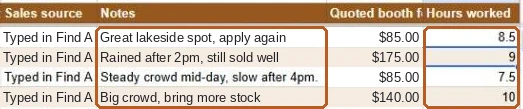
To add a market Find A Market doesn't have, type a new row with at least a title and a date, then tap Sync my sheet yourself (the automatic background sync won't create events). It's matched by title and date, and counts toward your saved-events limit.
4. Fill in mileage and sales tax
Mileage Log: add a row for every market you drive to. The block on the right estimates each market's round trip from your home location on every sync. Check each estimate and copy the real figure into your log.
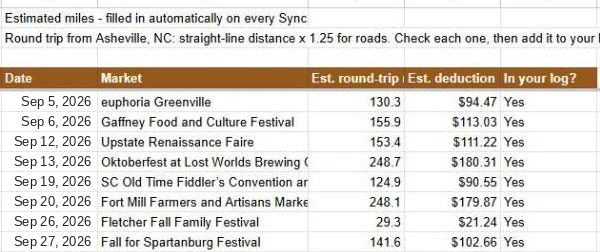
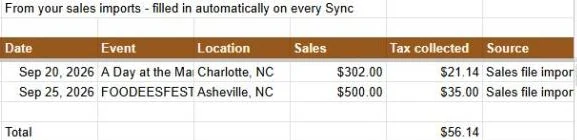
Sales Tax Tracker: type your local tax rate for each market and the tab works out what you collected. Markets whose sales you imported from Square or a sales file are listed on the right with their tax already filled in, so don't add those twice. Your mileage and tax totals show back up on Your Profile after the next sync.
5. Sync, or start fresh
The sheet syncs a few times a day on its own. Tap Sync my sheet any time to update it now. You'll see a confirmation, and Last synced updates. Create new starts a brand-new sheet and archives the old one, which is handy at the start of a new year.

Forwarding acceptance emailsFree
When a market emails you a decision (accepted, waitlisted, not accepted, or "application received"), forward it to your private Find A Market address and My Events updates that market for you.
- On Your Profile, open Forward your acceptance emails and tap the copy button next to your address. Keep it private: anything sent to it can change your My Events.
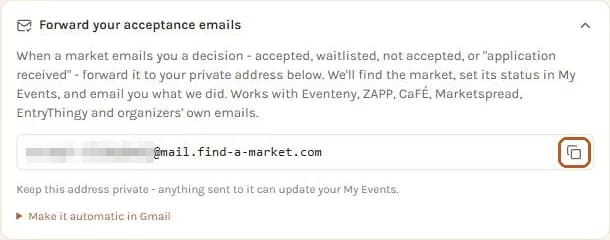
Your own address appears here (blurred in this picture). Tap the copy button. - Forward the market's email to that address, as is. It works with Eventeny, ZAPP, CaFE, Marketspread, EntryThingy and organizers' own emails.
- Within a minute or two, Find A Market finds the market, sets its status (adding it to My Events if it isn't there), and emails you what it did. The card's Recently forwarded list shows the result too.
Make it automatic in Gmail
- Gmail: Settings (gear), See all settings, Forwarding and POP/IMAP, Add a forwarding address, and paste your address.
- Gmail sends a confirmation link. Find A Market emails it on to you within a minute or two: click it.
- Back in Gmail: Filters and Blocked Addresses, Create a new filter. In "Has the words", try:
(accepted OR congratulations OR waitlist OR "application received") (booth OR vendor OR exhibitor) - Create filter, then tick "Forward it to" and choose your address. Your inbox keeps its own copy.
If the list says Couldn't tell which market, the email didn't name the market clearly enough: update that one by hand in My Events.
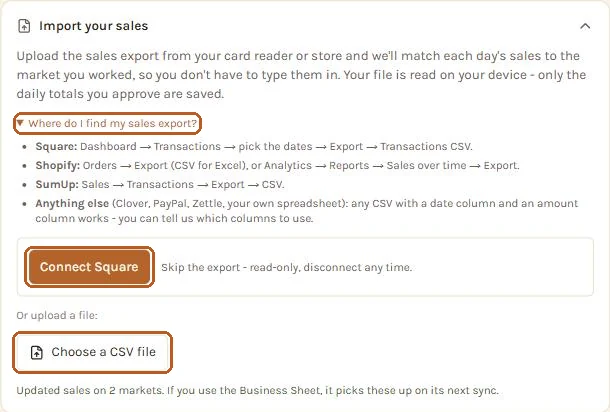
Importing your salesFree
Skip typing each market's sales. Your file is read on your device, and only the daily totals you approve are saved.
- On Your Profile, open Import your sales. Not sure where your export lives? Tap Where do I find my sales export? for Square, Shopify and SumUp steps.
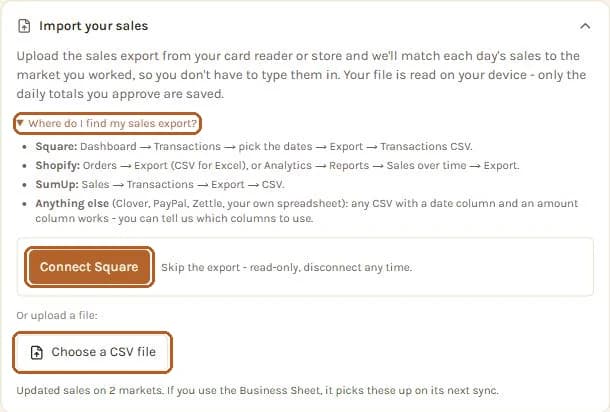
Three ways in: find your export, connect Square, or choose a CSV file. - Either Connect Square (read-only, disconnect any time), or tap Choose a CSV file. Any CSV with a date and an amount works.
- Check Columns we're using. If the sales amount or sales tax column is wrong, pick the right one. Failed, voided and online sales are left out, and sales tax is shown separately, never counted as sales.
- Under What will change, each day is matched to the market you worked. For each one choose Replace, Add to what you logged, or Keep mine. A day that wasn't a market can be marked Not a market day - skip.
- Tap Update. If you use the Business Sheet, it picks the new numbers up on its next sync.
Applying to an eventFree
For events where the organizer takes applications on their Find A Market page. Applying costs nothing on any plan.
- Open the event page and find Apply to sell at this event. If the event isn't saved yet, the card asks you to Save to My Events to apply. Tap it. Every application is tracked in My Events, and the event counts toward your saved-events limit like any other saved market.
- Tap Start my application. Your business details are filled in from your last application. A star marks anything the organizer requires, and any questions they added are at the bottom.
- If the organizer asks for photos, your photo library appears. Tap a photo to tick it (a check mark means it will be sent). The form says how many the organizer takes. Use + Add photos of your work to add more, or + Add a booth photo if they want to see your booth setup (one per application). Photos are shrunk automatically.
- For a juried event, the card shows the organizer's jury fee and a link to their own jury page. Pay them there, then tick I've paid the organizer's jury fee. Find A Market never takes or checks the fee, and you can't send the application without the tick.
- Tap Send my application. The event moves to Applied in My Events.
Your photo library
You can keep up to 8 photos. Each one shows how many days it has left: it is deleted 90 days after you last sent it with an application, so a photo you keep using never expires. Nothing is shown to an organizer unless you tick it on their application. Once you have photos, a Your application photos panel on Your Profile lets you review them and tap Remove on any you no longer want. A photo you already sent stays visible to that organizer until they finish with the application (30 days after they decide, or 90 days after you applied if they never do). Organizers see small thumbnails and open the full photo only when they want a closer look.
Some organizers ask for a website or social link instead of photos. Those are ordinary fields on the form.
After you apply
The organizer accepts, declines or (on some events) waitlists you, and you get an email either way. The event moves to Accepted or Declined in My Events. To take your application back, open the event page and tap Withdraw my application.
On the day, an organizer who uses scan check-in has a vendor sign at registration. With an accepted booking and a Find A Market account, scan it (sign in if you aren't), and you are marked arrived and shown your booth number and any note the organizer left. It is free for vendors.
Rating a market you already went toFree
Discover only shows what's coming up, so a market you worked last month won't be there. Find it by name instead.
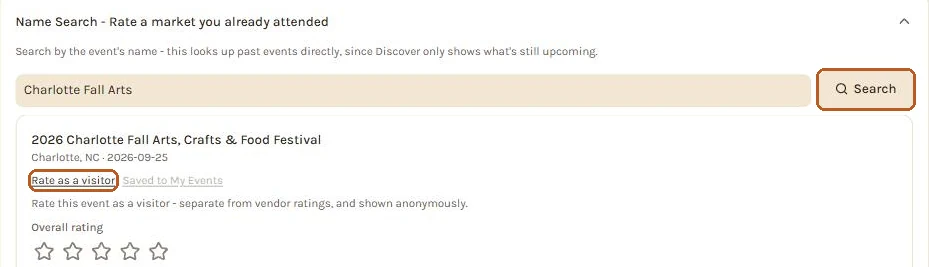
- Open Market Ratings, scroll to Name Search - Rate a market you already attended, type the market's name and tap Search.
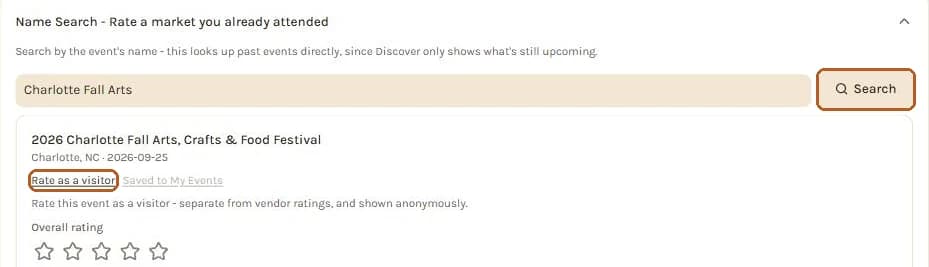
Search by name, then rate as a visitor on the spot, or save it to rate as a vendor. - Went as a shopper? Tap Rate as a visitor and rate it right there. Worked it as a vendor? Tap Save & rate as a vendor: it saves the market to My Events already marked attended.
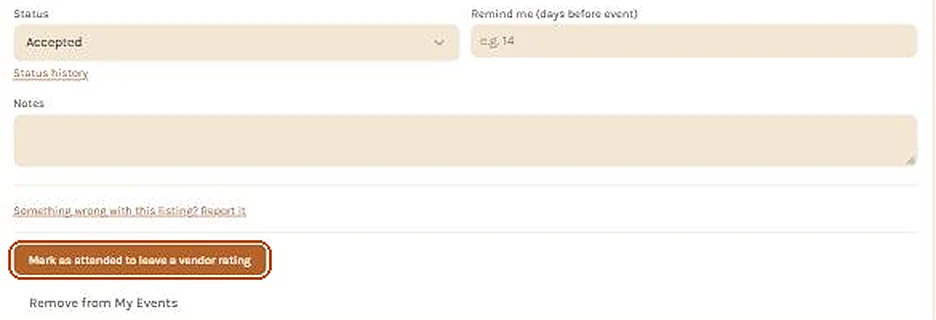
- Saved it earlier instead? Open its card in My Events and tap Mark as attended to leave a vendor rating (you can do this from the day of the market onward).
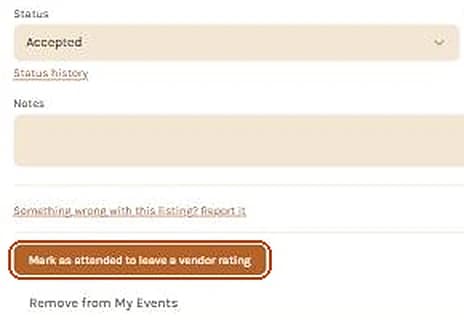
Mark as attended unlocks the vendor rating for that market. - On the card, tap How did this market go? Submit a vendor rating. Pick your stars (the only required answer), add anything else that would help the next vendor, and submit. It counts toward your rater rank straight away.
Which date a reminder counts down toFree
- Open the saved market's card in My Events.
- If it has both an application deadline and an event date, you'll see Deadline and Event date buttons above the reminder box. Deadline is picked to start with, because it's usually the date that matters. Tap the other to switch.
- Type how many days before that date you want reminding, then tap or click anywhere else to save it.
When it comes due, it appears in Reminders at the top of My Events, and you get an email (and a Discord message if you've linked Discord).
Rating the same market next yearFree
- After this year's market, open its card in My Events and open the vendor rating form again.
- Open the rating form again. Because you've rated this market before, it asks you to confirm you went to this year's market. Your earlier rating stays on record.
- Update your answers and submit. At Master rank, if nothing has changed, tap Still accurate - refresh instead of filling it in again.
Sharing your public scheduleFree
A page customers can check to see where you'll be next, built from the markets you're accepted into.
- On Your Profile, pick a username under Your profile and save. Your link is built from it.
- Mark the markets you're in as Accepted in My Events. Only upcoming accepted markets are shown.
- Under Your public schedule, turn on Show my schedule publicly.
- Tap Copy page link and put it in your Instagram, Etsy or Facebook bio. Regulars can also subscribe to the calendar feed link below it, so new markets appear in their own calendar.
Turning it off hides the page straight away. Nothing else about your account is shown on it.
Claiming your event as an organizerFree
- In Settings, find Organizer registration and follow its link.
- If Find A Market already lists your event, claim it. If not, register and tell us about it: you don't need an existing listing.
- Prove it's yours. The quickest way is a website on the same domain as your account email. Otherwise we email you a short line of text to post somewhere public you control, like your site or a social bio.
- Wait for review. Every claim is checked by a person. Once you're verified, Settings links to your organizer dashboard, where you manage listings, answer vendors' questions, and see followers and ratings.
More on what verified organizers can do is in the Guide.
Taking vendor applicationsFree
For verified organizers. The form and the inbox are free. A few extras are Organizer Plus, and each one says so below.
1. Set up the form
- On your organizer dashboard, open the listing, go to Vendors and applications and tap Set up an application form.
- Tick Accepting applications. Add an application deadline if you have one, a note to vendors (for example "Juried show, handmade only"), and your booth options and fees as plain text.
- Every application asks for the business name, email, phone, website, social link, what they sell and a few words about their work. Tick any you want to make required, and add questions of your own, like which booth size they want or whether they need electricity.
- Juried event? Enter your jury fee and a link to your own jury page. Vendors see both and must confirm they've paid before they can apply. The fee goes to you, on your page. Find A Market doesn't take it or check it, so each application is badged Jury fee: vendor says paid and you match it against your own records.
- Tap save. Vendors can apply from your event page right away. To stop taking applications, untick Accepting applications.
Organizer Plus extras on the form
- Photos from vendors. Choose Don't ask, Optional or Required for photos of their work (and set how many, up to 6) and separately for a photo of their booth setup. On the free plan, make the website or social link required so you can see their work there.
- A payment link for accepted vendors. Paste it, or read it from your payment QR code. Accepted vendors get the link in their email, with an optional note like "Booth fee due within 7 days."
- Your own wording for the accept, decline and waitlist emails. Leave one blank to use ours.
2. Decide
Each application appears in your inbox with the vendor's answers. Photos show as small thumbnails: tap one to open it full size. Accept or decline and the vendor is emailed; accepted vendors also get the market in their My Events. You can add vendors by hand, and Hide vendors and applications tucks the list away.
With Organizer Plus you can also waitlist a vendor, offer a dropped spot to the next waitlisted vendor in one click, decide on many applications at once with one message, and download the whole list as a spreadsheet.
Connecting a Google FormOrganizer Plus
For organizers who already collect applications with a Google Form and don't want to switch, or who want vendors to have more than one way to apply. Every response shows up in your inbox as a waiting application, with all of the vendor's answers saved.
- Under Vendors and applications on your listing, tap Connect a Google Form, then Connect a Google Form again to make your private link and script.
- Open your Google Form, click the three dots at the top right and choose Apps Script.
- Delete anything already in the editor, paste the script from Find A Market and click the save icon.
- In the toolbar pick famSetup from the function list and click Run. Google asks you to approve permissions. It will say it hasn't verified the app, because the script is your own: click Advanced, then Go to your project, then Allow.
- To bring in responses the Form already has, pick famSendExisting and click Run. Running it twice never adds anyone twice.
- Submit a test answer in your Form. The panel on Find A Market shows how many applications have arrived.
The link inside the script is private to you and is shown only once. If you lose it, make a new link and paste the new script; the old one stops working. You can pause the connection at any time, and new responses are turned away until you resume it.
Importing your vendor listFree
For verified organizers who already keep a list of vendors somewhere else. Under Vendors and applications tap Import a list.
- Pick what to bring in. For one event, that is who applied, who is booked, booth numbers and who has paid. For your whole list, vendors go on your vendor list (and your Organizer Sheet) for any event.
- Upload a CSV or Excel (.xlsx) file whose first row names the columns (name, email, booth, paid and so on), up to 5 MB. These are read directly, on every plan.
- A Word document, a PDF, a file without clear column names, or a list pasted as plain text (for example "Oak Hollow Woodworks, booth 14, owes $75") is read for you automatically. That part is Organizer Plus.
- Check the list. Nothing is saved until you do, and nobody you import is emailed.
Building your booth mapOrganizer Plus
Lay out your booths, put each accepted vendor in one, and show the map on your event page so shoppers can find everyone. Open it from the listing on your dashboard with Booth map.
- Map size sets the grid in squares across and down, from 6 to 150 each way (each square is about 5 feet). Keep it small for a park or make it long for a street market. A map can hold up to 600 booths and 60 landmarks.
- + Add booths places a row of booths for you. Say how many, give a letter or prefix and the number to start at (A1, A2 and so on), pick across or down, and set the booth width and depth in squares. You can add a size label like 10x10 and a price.
- + Add a landmark marks an Entrance, Stage, Food, Restrooms, Info, Parking, Seating or Street, or anything else.
- Optional: Add a site photo or sketch and lay your booths over it.
- Drag a booth or landmark to move it. Tap one to name it, size it or put a vendor in it. Vendors who have applied but have no booth yet are listed under the map. Every booth needs its own name or number.
- Tick Show the map on my event page, with vendor names, so shoppers can find booths if you want shoppers to see it, then Save the map. Accepted vendors see their spot on your event page either way. Download to print gives you a printable picture.
Reusing a layout
A new listing starts from the last layout you made. For a different event, choose it under Copy the layout from another event and tap Use that layout: it replaces the booths on the map (vendors stay with their own event, and nothing changes until you save). If you also use the Organizer Sheet, Use my organizer sheet brings a layout you typed on its Booth Layouts tab into the map, or sends the map to an empty layout there.
Your event page, drafts and schedulingFree
How your event page looks
The event page is where shoppers land when they scan your signs and booth cards. Under Shopper rewards and market games on your dashboard, the Event page choice sets its look: Same as my printed design (the default), the standard Find A Market look, or any design from the list. Some designs are Organizer Plus and say so. The Holiday style menu next to it follows your event date unless you pick one by hand, which helps for an event that falls between holidays.
Drafts and scheduled listingsOrganizer Plus
When you add a listing, When should it go live? offers Publish now (every plan), Save as a draft (hidden until you publish it from your dashboard) and Post automatically on a date and time. On a listing you already have, Hold as draft, Schedule it and Publish now do the same, and a held listing is badged Draft or Scheduled on your dashboard.
Editing a listing
You can edit your listing's facts on any plan. On a listing that is already in our dataset, you tick an are-you-sure box before the change goes through.
The check-in sign, rewards and gamesFree
For verified organizers. Everything here is on your organizer dashboard, under each listing's Shopper rewards and market games.
1. Print the check-in sign
Tap Open the printable sign and print it. Put it at your info booth. Shoppers scan it on market day to collect a verified Market Passport stamp. Once a few shoppers scan it with location on, your map pin moves to where they actually stood.
2. Set a reward for regulars
Choose a visit count from 2 to 20 and the reward, like a free tote or $5 in market tokens, then Turn on reward. Only scans of your sign count, so it can't be collected from home. A shopper who reaches the count sees "Reward unlocked" and a 6-character code on your event page. When they show it, open Hand out a reward on your dashboard (or at /settings/organizer/redeem on your phone), type the code, check their stamps, and tap Redeem. Each shopper can claim a given reward once, so it can't be handed out twice.
The printed sign's code is the same every week, so a photo of it would work for anyone on a market day. If your reward is worth protecting, tick Accept only today's check-in code under the reward. Then shoppers scan the code on your phone at the info booth, and it changes every day. Open it from Market day check-in under your event.
Vendor check-in
Under your event, Market day check-in lists your accepted vendors. Tap Check in as each one arrives and the time is recorded, and a vendor who walks up without a booking can be added on the spot. That works on every plan. With Organizer Plus the same panel also shows a vendor sign: vendors with an accepted booking and a Find A Market account scan it at registration, sign in, and are marked here by themselves. They see their booth number and a note you can leave (where to unload, who to ask for). Vendors never pay to scan. Once anyone is checked in, your market page shows who is actually here instead of who is booked.
3. Run market bingo
Bingo runs in rounds all day, so nobody arrives to find it's already over. Pick a card size: 3 by 3, 4 by 4 or 5 by 5 (bigger cards take longer to fill, so give them longer rounds). List the squares (at least 9, 16 or 24 to match the size, up to 40) or keep ours; none ask anyone to buy anything. Then pick a line or a full card to win, the round length (20 to 90 minutes) and how many rounds. Add a list of small prizes, one per round, under about $10 each. Ask your vendors to donate one and add "| vendor name" to credit them. Tap Turn on bingo, then Start bingo on market day.
Each shopper gets their own random card every round and snaps a photo for each square. When a round ends, one player who called bingo is drawn at random. Your panel shows their first name, last initial and claim code. They show you the code and their photos; tap Mark claimed. If they don't come by the claim time, tap Draw again (twice per round at most). One prize per person per day is on unless you turn it off.
4. Booth trail
Set how many booth stamps finish the trail and the reward. Joining is up to each vendor: vendors with an account join from your event page, and you can add vendors from your list who don't have one once they've agreed. Make blank tiles (one per booth) and print them: each is a numbered stop with a picture and a scan code, and no vendor name, so you laminate once and reuse them. Before the market opens, or as vendors check in, tap Scan a tile to assign it and pick the vendor. Shoppers tap a booth on your event page to open their camera (or use their phone's camera app) and scan the code to collect a stamp, and each scan also counts as a verified check-in. The booths are listed in booth order so shoppers can walk the market once. Every set has 24 pictures; with more booths than that the pictures come round again in a new ring color, so every stamp still looks different. An assignment ends on its own after the market, so next time you scan the same tile and assign it to whoever is there. A weekly or seasonal listing reuses its tiles every market day, and for a new listing Reuse a past trail brings a finished listing's tiles over with the same codes. Every booth gets its own illustrated stamp, and you choose the set: Basic (market and vendor goods, the default), your own uploaded pictures, or a seasonal or holiday set (Spring, Summer, Autumn, Winter, New Year's, Valentine's Day, St. Patrick's Day, Earth Day, Mother's Day, Father's Day, Fourth of July, Halloween, Thanksgiving, Shop Small, Hanukkah or Christmas). Nothing is picked for you, and every set is open all year so you can plan ahead. Bingo and the booth trail share one picture set, so the same booth tile runs bingo, the trail, or both together. Print the tiles from either panel with Print booth tiles; with no stops yet you get a tile for each accepted vendor on your list, or one of every picture.
5. People's Choice
Pick up to 3 categories from the menu: Best Booth Display, Friendliest Vendor, Favorite Product, Most Unique Find or Best Bite. Shoppers with a verified check-in (they scanned your check-in sign or were at the market with their location on) vote on your event page by picking a vendor from a list of the vendors at your market; untick anyone who isn't there that day under Who's on the ballot. Watch the totals, then tap Announce winners. Winners show on your event page and get a badge on their vendor page. Ties are joint winners.
Starting a Market crewMarket Pass
- Open Market crew (also linked from the Market Pass page) and, under Start a crew, give it a name and tell us what your friends call you.
- In the crew, tap Copy invite link and send it to your friends. Joining is free, and the link is the only way in. You can reset it any time.
- On any event page, tap Add to crew plan. The plan also shows every upcoming market someone in the crew tapped "I'm going" on, with who's going.
- Use the crew chat to sort out the details. Anyone can report a message; it's hidden right away and we review it. As the starter you can remove members, and leaving ends the crew.